The Quest Hub is your command center. A real-time read on what drives each child, what they're carrying, and where the smallest piece of support will land hardest. This is how to use it.
◆ 6 modules◆ 5–7 minute read◆ v1.0 · April 2026
01Stepping in
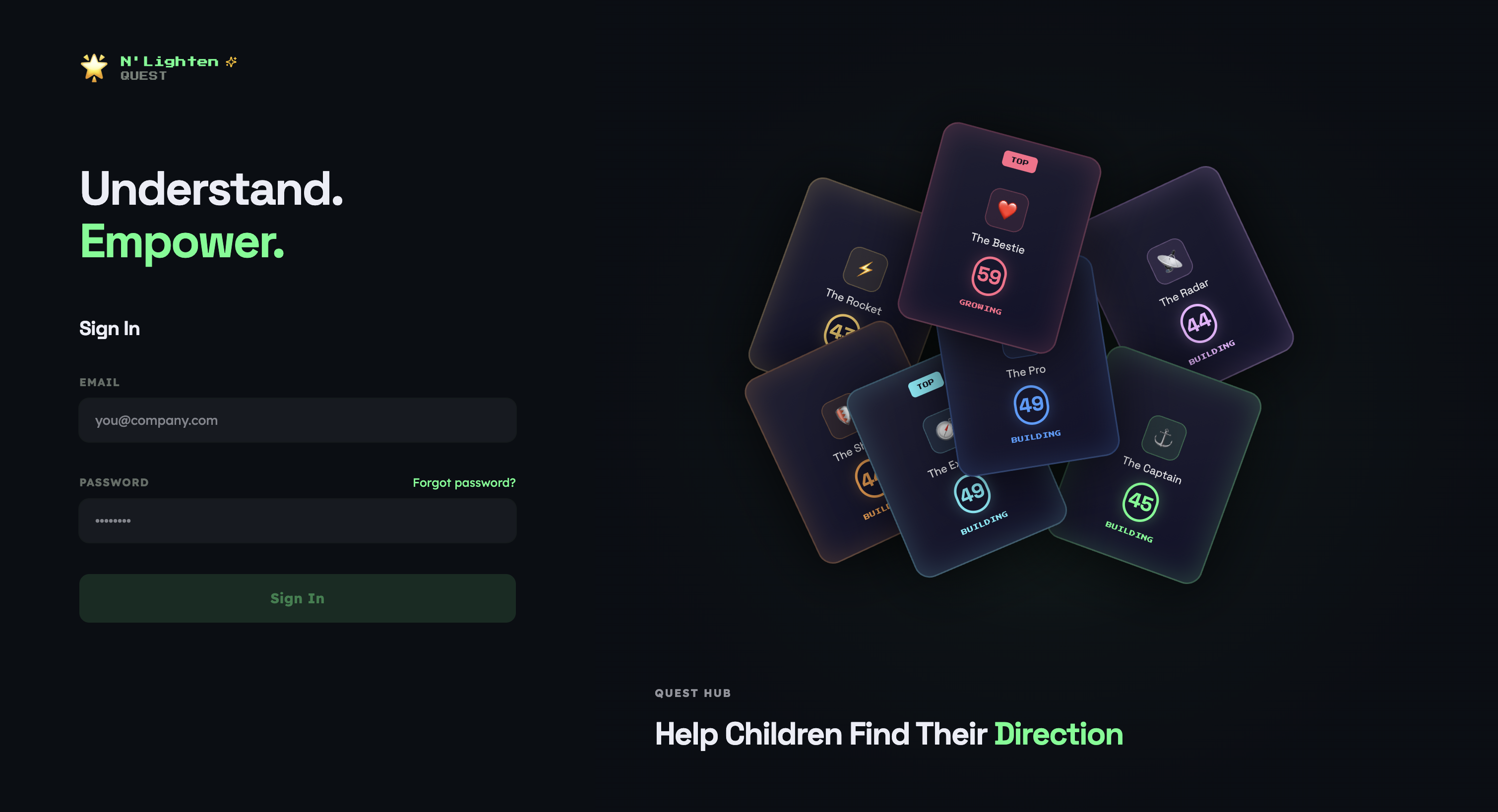
The Login Screen.
Your first move into the Hub. Quick. Clean. The only friction you'll meet on the way in.
Your invitation email lands first. Inside it are your credentials.
Drop them into the Login Screen. You'll be asked to set a fresh password before you cross over into the Hub Dashboard. That's the entire entry sequence — done.
FRAME 01
Frame 01 · Login Screen
02Your home base
The Cognitive Load Overview.
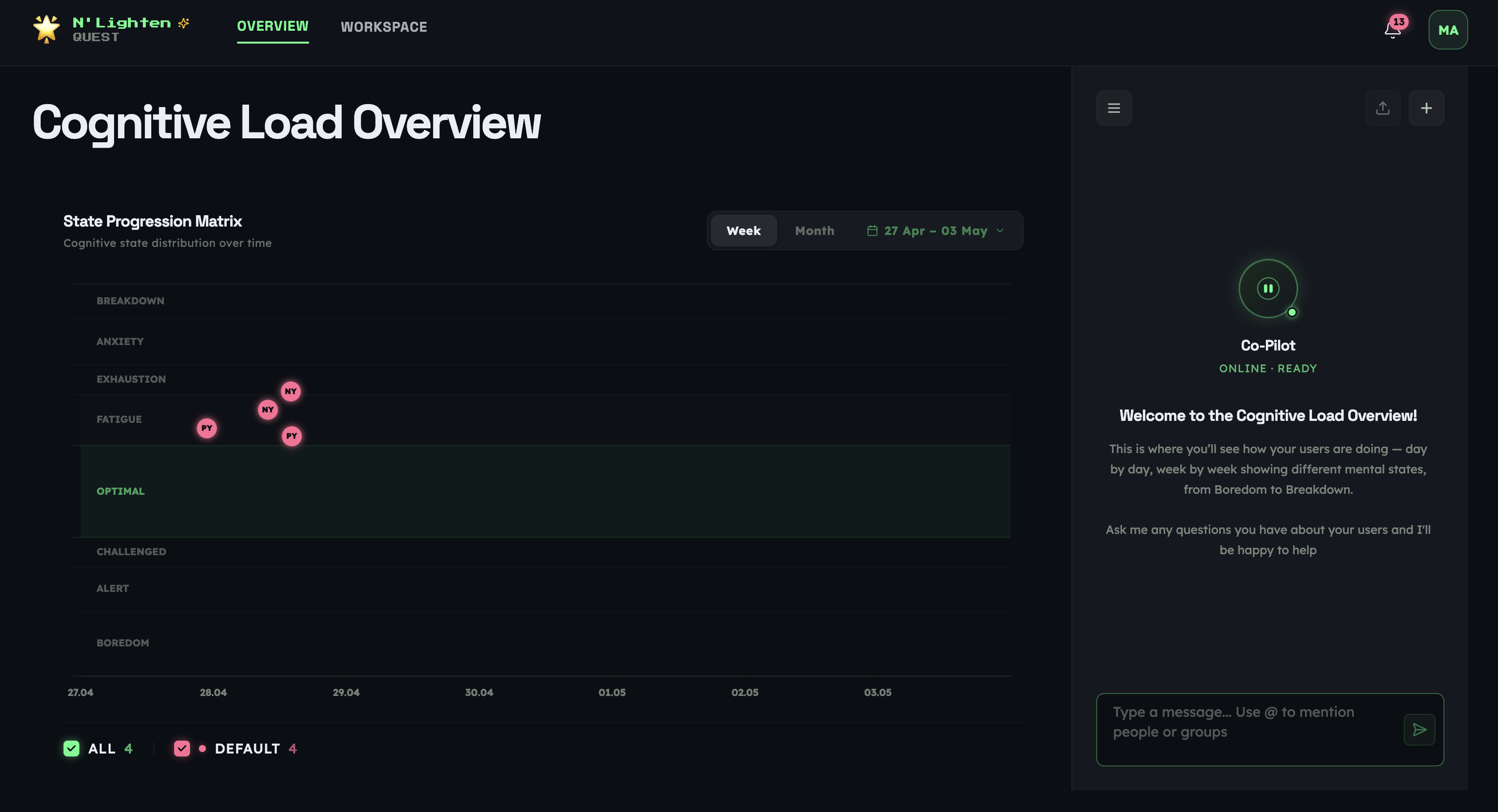
A live read on how every child is doing — and where their head is, right now, in real time.
You don't have to guess what's going on for each child. The bubbles do the talking.
As children interact with their agent, an 'initial' bubble appears for each one — a real-time signal of where their cognitive state sits. Settled. Stretched. Engaged. Disconnected. You see it on the page, not buried in a report.
To the right sits your Co-Pilot panel. Type @ followed by a child's name, and it pulls up insights specific to that child. No clicking through, no digging.
Want to go deeper on a single child? Hover over their bubble. Click it. You're now inside their personalised data.
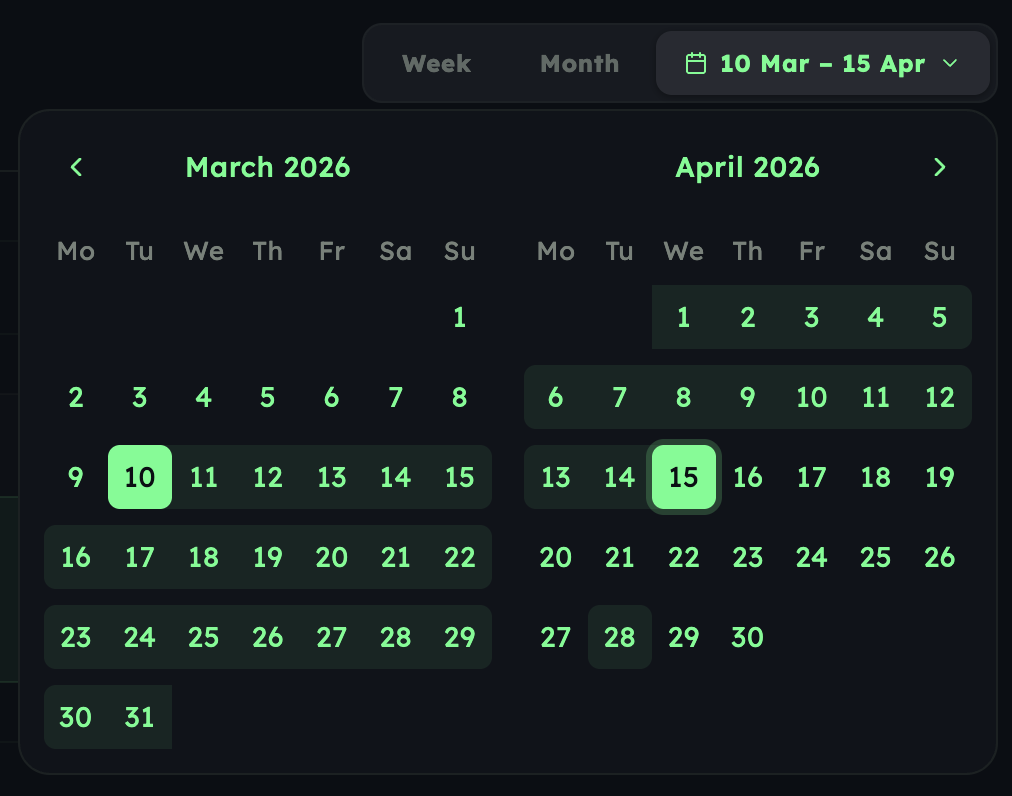
The Overview also lets you filter by date. Pick a preset — Week, Month — or set a custom range when you're zooming in on something specific. The run-up to assessments. A return from break. The week a project landed.
FRAME 03
Frame 03 · Date range filter
Field note
Start each day on the Overview. Two minutes with the bubbles tells you who's settled, who's stretched, and where your attention will land best — before the room is even full.
03Up close
Individual User Data.
Everything you need to know about one child — their North Star, their personality, the path they're walking.
This is where you get to know a child. Not their grade. Them.
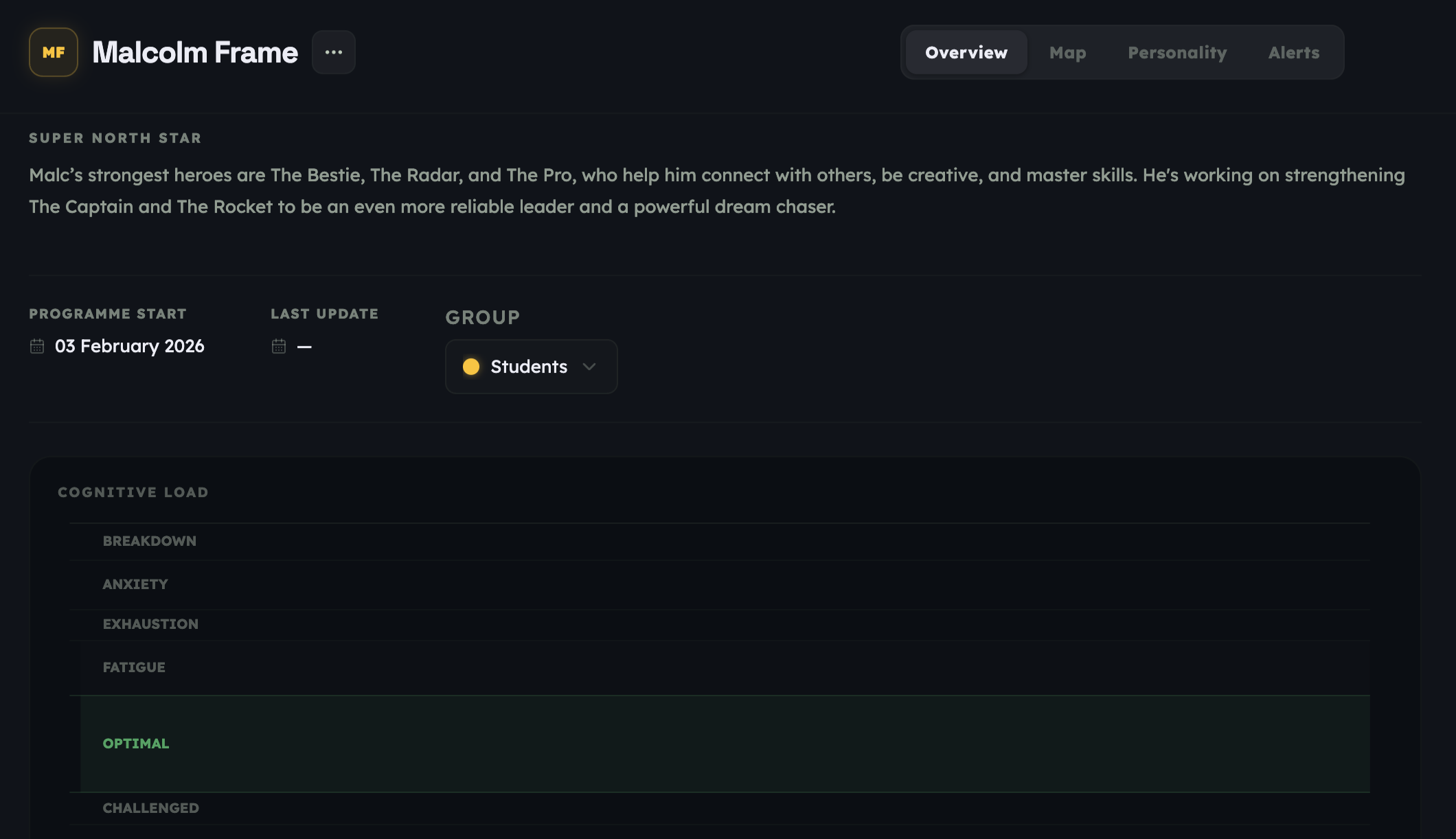
The Individual User Data page is built so that the support you offer can meet a child exactly where they are. What drives them. What they're aiming for. What's getting in the way today. It's all here, and it's all theirs.
SECTION 01
Overview
Their Super North Star — and where their cognitive load sits today.
SECTION 02
Map
The shape of their Quest — every step they're taking toward their North Star.
SECTION 03
Personality
Who they are, in their own shape — OCEAN scores and the motivations underneath.
SECTION 04
Alerts
Early signals when language suggests a child needs support — surfaced the moment they appear.
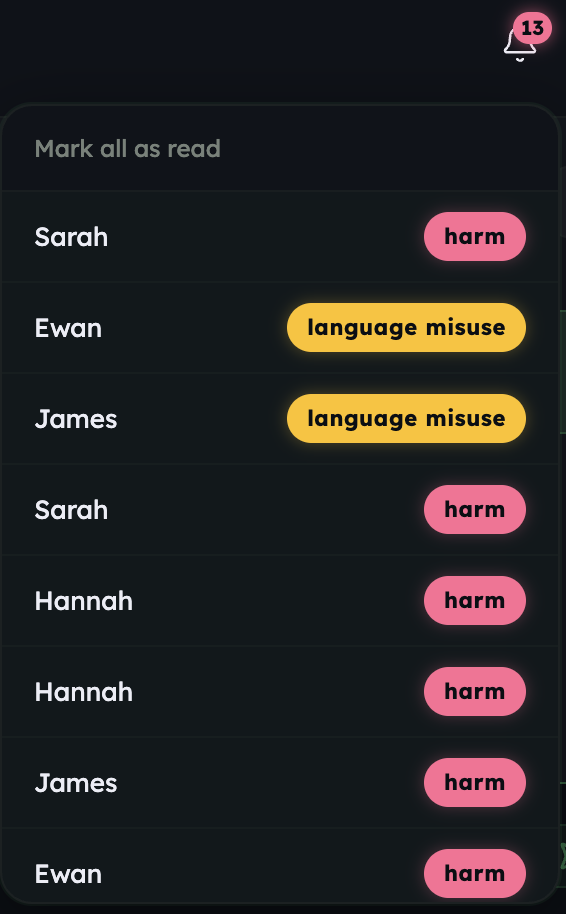
The Alerts section earns its weight. If a child uses language that signals harm — to themselves, to others, to animals, or that's otherwise inappropriate — an alert lands in the Hub the moment it surfaces. Catching that early means you can step in with the right kind of support, address what's underneath before it grows, and make sure the child feels safe, heard, and held.
FRAME 04
Frame 04 · Individual user · Overview & Map
FRAME 05
Frame 05 · Personality & Alerts
04Behind the scenes
The Workspace.
One place to see everyone in your Hub — and bring the next person on board.
All your users, admins, and groups. One screen.
The Workspace is where you manage everyone in your Hub. Add new users. Invite admins. Create or edit groups. It's all here, and it's all in reach.
Once a user or admin signs in for the first time, their status flips to Active. That's your signal that they're ready to go.
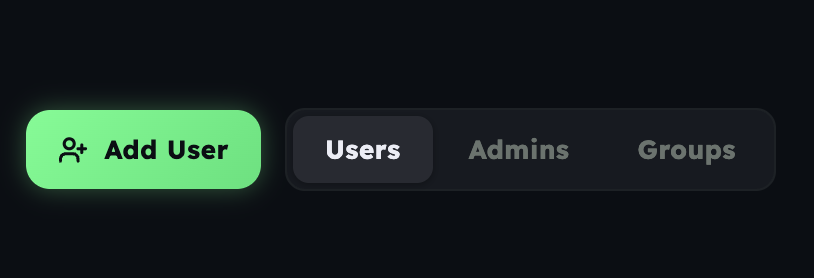
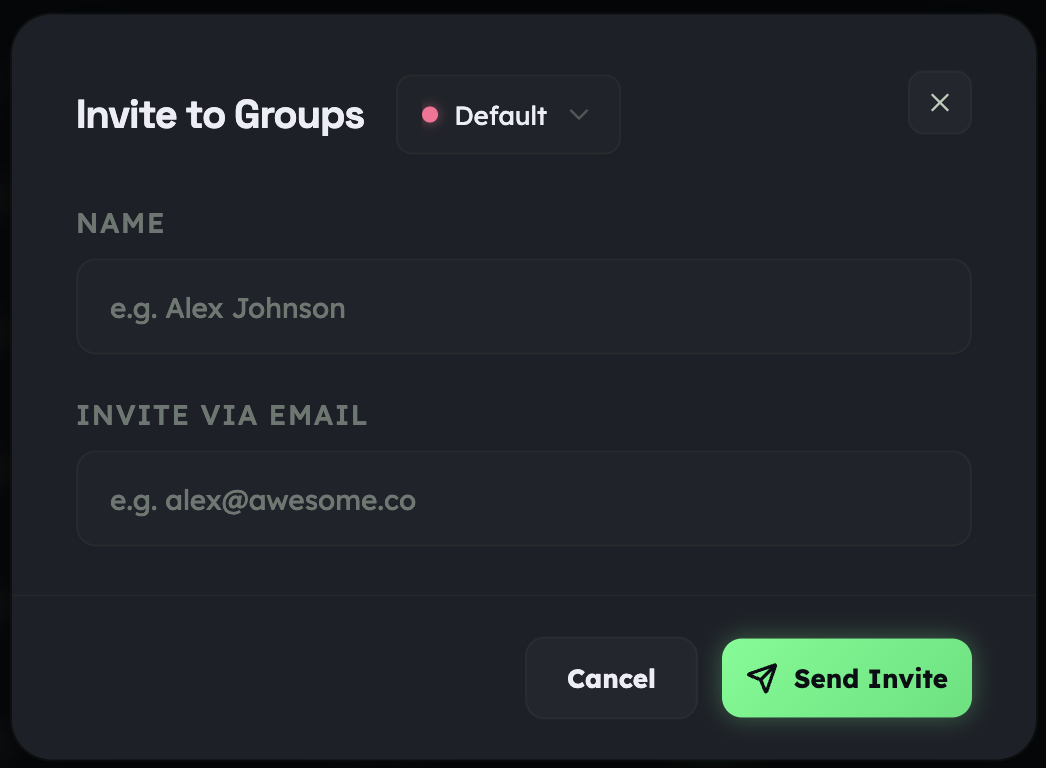
To add someone, click the User/Admin icon and choose Add User or Add Admin. A small window asks for a name and email. The name you enter is exactly how they'll appear in your Hub — so use the form you'd want to see every day.
Once you submit, an invitation lands in their inbox with a username and a temporary password. The Quest begins.
FRAME 06
Frame 06 · Workspace · users & admins
FRAME 07
Frame 07 · Add User · Add Admin
05Better together
Groups.
Bring children together so you can see how they work — not just who they are.
Some questions only make sense when you ask them about a group. Now you can.
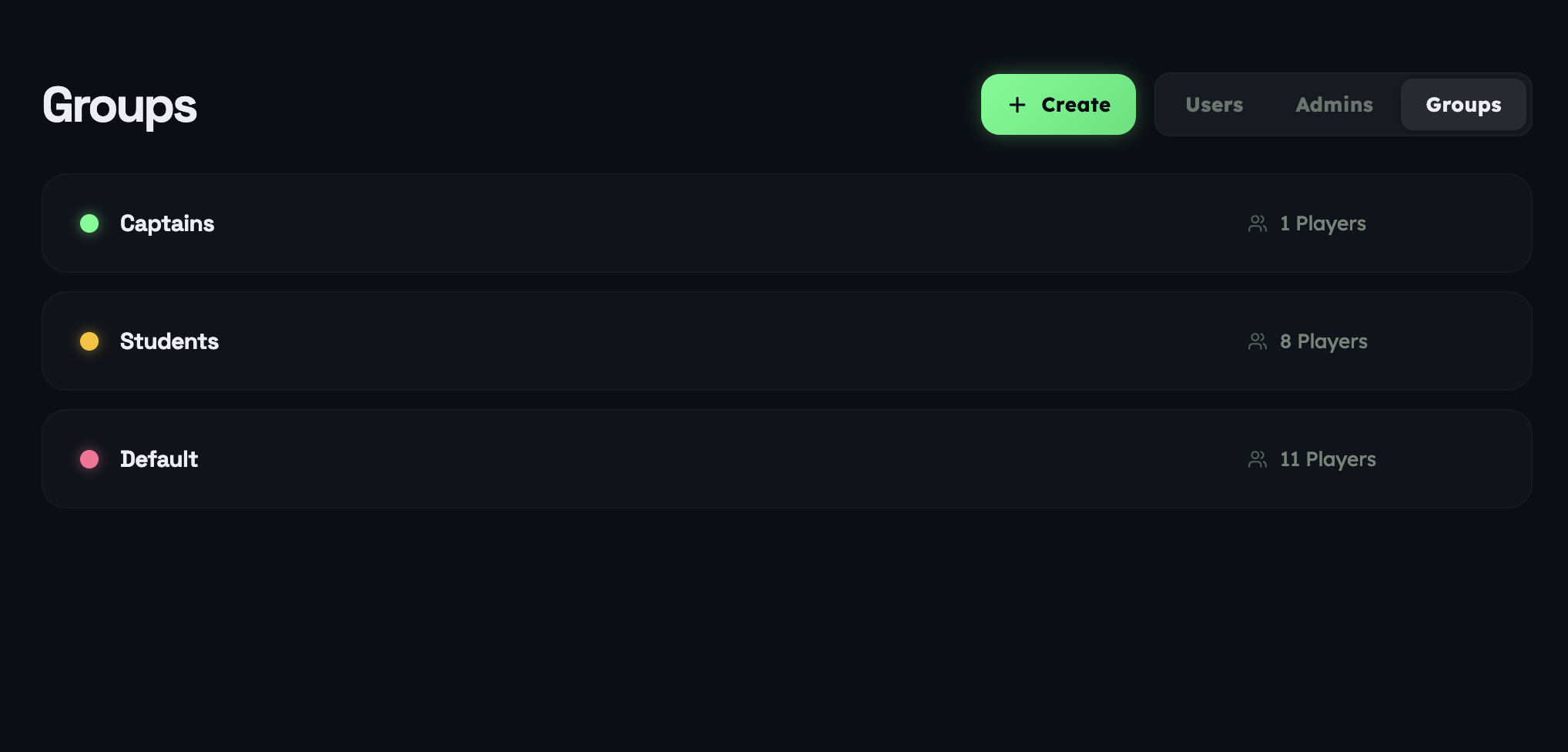
Groups help you see how children work together. You'll get a clearer picture of team dynamics, and Co-Pilot can answer questions about a group as easily as it can about a single child.
For instance:
Who in @Group Name would be best suited to lead a project and keep the team motivated?
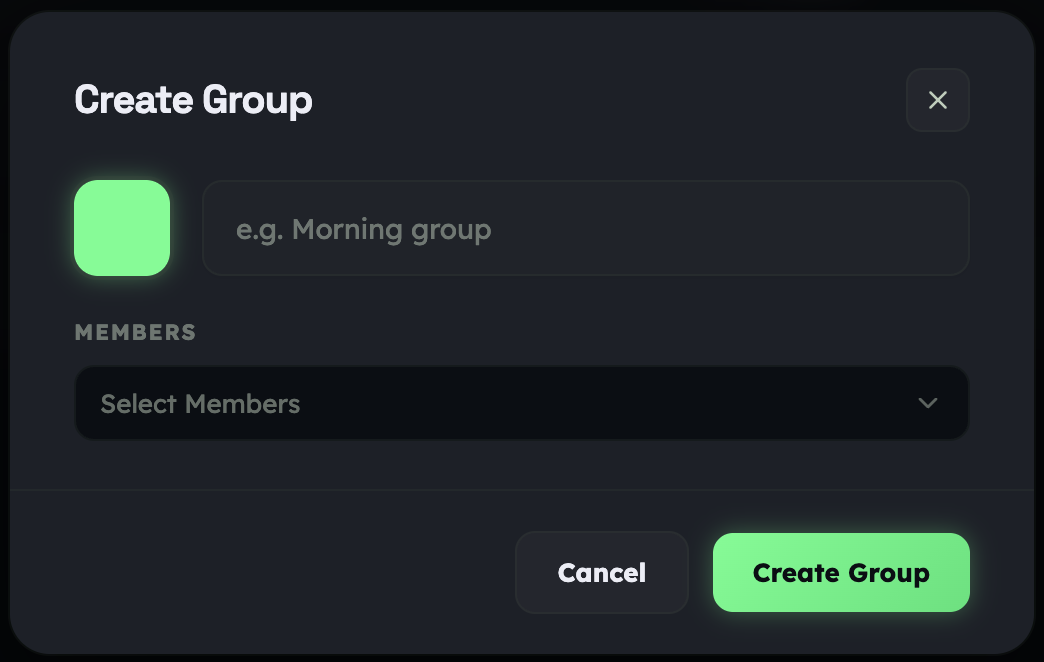
To create a group, click + Create, give it a name, and choose the children you'd like to include from your user list. That's it. The group is ready, and Co-Pilot is ready to help you think about it.
FRAME 08
Frame 08 · Groups · list view
FRAME 09
Frame 09 · Create a group
06Your thinking partner
Co-Pilot.
The bridge from data to decision. From insight to something you can actually use tomorrow morning.
Raw data on a child won't change a classroom. An informed conversation will.
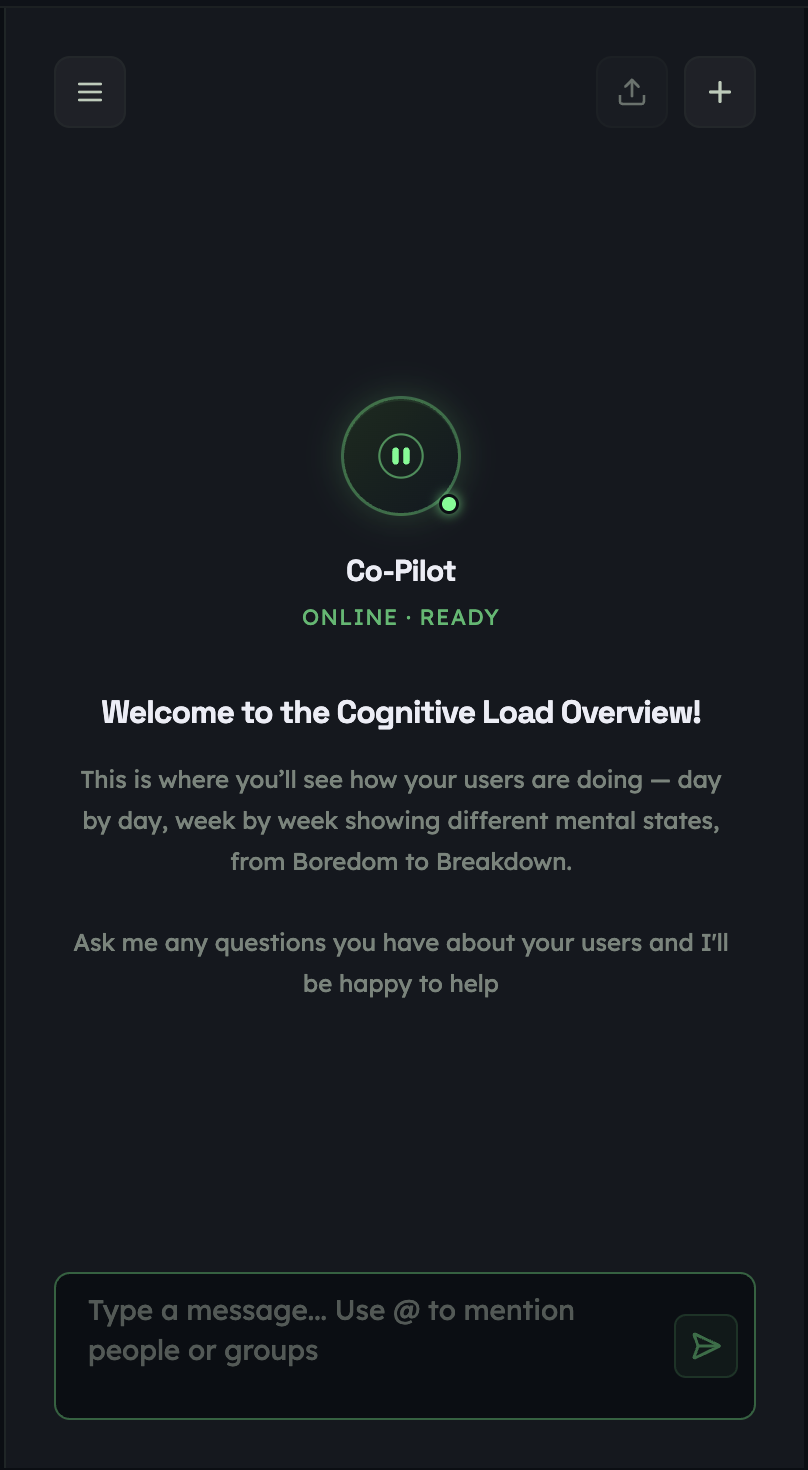
Co-Pilot turns personality, motivations, ambitions, and cognitive load into practical guidance you can use in the day-to-day. Not just numbers to interpret, but a thinking partner that helps you interpret them — into clearer communication, stronger support strategies, and better decisions.
It's built around each child's profile and behavioural insight. You give it the question. It gives you the angle.
Try things like:
How can I help @User reach their optimal state based on their personality?
We have a new student. How can I help @User integrate successfully into the classroom?
Co-Pilot will respond with personalised, actionable recommendations grounded in that child's profile. The more context you give it, the more useful it gets.
FRAME 10
Frame 10 · Co-Pilot in conversation
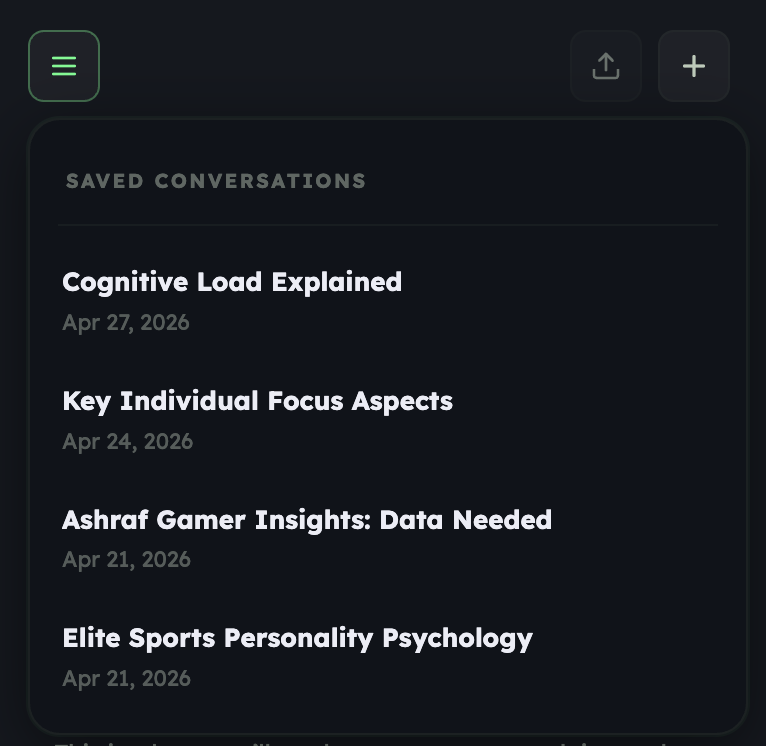
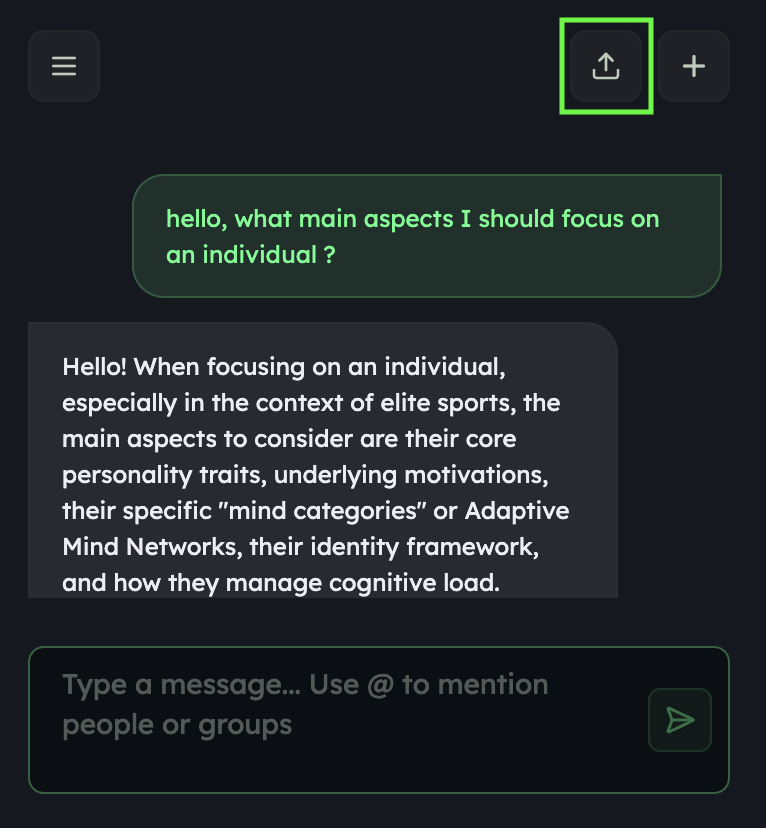
Co-Pilot also keeps a memory of what you've talked about. Revisit past conversations any time, or pull them off the platform when you need them elsewhere.
Menu
Opens your conversation history.
Download
Exports the current conversation to your computer.
+ New
Starts a fresh conversation.
The @ rule
When you ask Co-Pilot about a specific child or group, always start with @ followed by their name. That's how it knows whose profile to reach for.
FRAME 11
Frame 11 · Conversation history
FRAME 12
Frame 12 · Download · New chat
Every child is on a Quest. You're the one who helps them walk it.